Manage In-App Notifications for the Conversations Tool
Also available on 

Objective
To manage in-app notifications for the Conversations tool in Procore.
Things to Consider
- Required User Permissions:
- You must exist in a project's Directory.
- Additional Information:
- In order to receive notifications for the Conversations tool, you must allow Procore notifications when prompted by your browser. See the steps below for more information.
Steps
- Log in to Procore. See Log in to Procore Web.
- Click the 'Account & Profile' icon in the navigation bar.
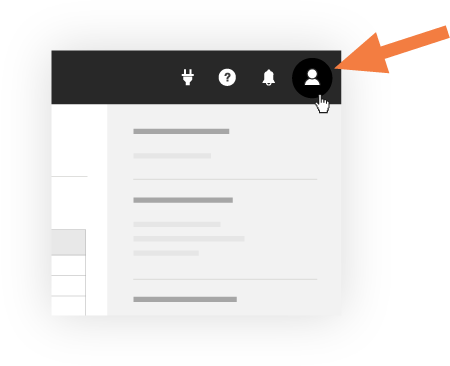
- Click My Profile Settings.
- Click the Notifications tab.
- Under 'In-App Notifications':
- To enable in-app notifications: Click the toggle ON.
Note: You will need to allow Procore notifications when prompted by your browser. If you previously blocked notifications, you can still manage notifications in your browser's settings.
- To disable in-app notifications: Click the toggle OFF. Skip to step 7.
Note: You will no longer receive notifications, but will still see be able to see new messages in the Conversations tool.
- To enable in-app notifications: Click the toggle ON.
- Under 'Notification Preferences by Tool or Feature', select which in-app notifications you want to receive:
- All New Conversations Messages
OR - Custom Settings. Mark the checkbox next to the message types you want to receive notifications for:
- New Direct Messages
- New Group Messages
- New Item Conversation Messages
- Mentions in Group and Item Conversations
- All New Conversations Messages
- Click Update.
Note:- When in-app notifications are enabled, a message will briefly show in the top right corner of your screen when you receive a new message.
Tip! You can click Show an Example Notification on the Notifications tab to see an example.

Below is an example of a notification from your browser about a new message in the Conversations tool.

- When in-app notifications are enabled, a message will briefly show in the top right corner of your screen when you receive a new message.