Configure View for Assignments Gantt
Background
The Assignments Gantt allows you to view resource requests, resource assignments, and time off for a specific project or across all projects and people within your company. It also provides a multi-day view from one day to three years.
Things to Consider
-
Totals
Steps
-
Adjust List and Timeline Ratio
-
Configure Displayed Information
-
Group by Project or Resource
-
Expand and Collapse Projects, Categories and Subcategories
-
View Timeframe, Zoom In and Out
Adjust List and Timeline Ratio
-
Navigate to the Company level Resource Planning tool.
-
Click Assignments and select Gantt (Beta).
-
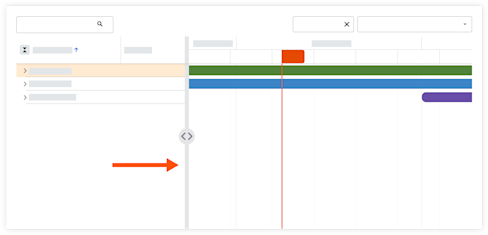
Hover over the divider that separates the grid and the graph.
-
Click the divider and move it to the desired location using a drag-and-drop operation.
Configure Displayed Information
-
Navigate to the Company level Resource Planning tool.
-
Click Assignments and select Gantt (Beta).
-
Click the Projects or Resources view.

-
Click the table settings
 icon.
icon.-
Projects View
Show / Hide Steps
-
Click the Columns tab.
-
Move the toggle
 ON or
ON or  OF show or hide columns on the gantt chart.
-
Job Title
-
Project Number
-
Project Start Date
-
Project End Date
-
Task Start Date
-
Task End Date
-
[Custom Fields]
-
-
Click the grip
 icon and drag the column into the desired display order.
-
-
Click the Gantt Chart tab.
-
Move the toggle
ON or OF show or hide details in the Gantt bars.-
Allocation Information
-
Weekends
-
Time Off
-
Resources Not in Group
-
-
Row Height
-
Select Small, Medium, or Large.
-
-
Task Border Radius
-
Click and move the slider to adjust the size.
-
-
Assignment Bar Colors
-
Allocation Percentage
-
Job Titles
-
Overtime
-
Project
-
Status
-
-
Cell Units
-
Cost
-
Days
-
Hours
-
Resources
-
-
-
-
Resources View
Show / Hide Steps
-
Click the Columns tab.
-
Move the toggle
ON or OFF position to show or hide details in the Gantt bars.-
Job Title
-
-
-
Click the Gantt Chart tab.
-
Move the toggle
ON or OF show or hide details in the Gantt bars.-
Allocation Information
-
Weekends
-
Time Off
-
Resources Not in Group
-
-
Row Height
-
Select Small, Medium, or Large.
-
-
Task Border Radius
-
Click and move the slider to adjust the size.
-
-
Assignment Bar Colors
-
Allocation Percentage
-
Job Titles
-
Overtime
-
Project
-
Status
-
-
Cell Units
-
Allocation
-
Cost
-
Days
-
Hours
-
-
-
-
Group by Project or Resource
-
Navigate to the Company level Resource Planning tool.
-
Click Assignments and select Gantt (Beta).
-
Select to see information grouped by Resources or Projects.
Expand and Collapse Projects, Categories, Subcategories, and Assignments
-
Navigate to the Company level Resource Planning tool.
-
Click Assignments and select Gantt (Beta).
-
Next to the project, category, subcategory, or assignment take one of the following actions:
-
Click the expand
 icon to expand the information
 -
Click the collapse
 icon to collapse the information
Tip
To expand and collapse everything, click the expand or collapse
  icon next to the 'Project Name' or 'Resource' heading.
-
View Timeframe, Zoom In and Out
-
Navigate to the Company level Resource Planning tool.
-
Click Assignments and select Gantt (Beta).
-
Configure your timeframe:
-
Select the date, and select the timeframe from the neighboring dropdown menu.
-
Click the zoom in
 icon or zoom out
  icon to view the Gantt from a single day, up to many years.
-