Email a Site Diary
Objective
To email a site diary to users in the project.
Things to Consider
- Required User Permissions:
- 'Standard' or 'Admin' permissions on the project's Site Diary tool.
- Additional Information:
- Users with the ‘Collaborator Entry Only’ granular permission cannot email the site diary.
Steps
- Navigate to the project's Site Diary tool.
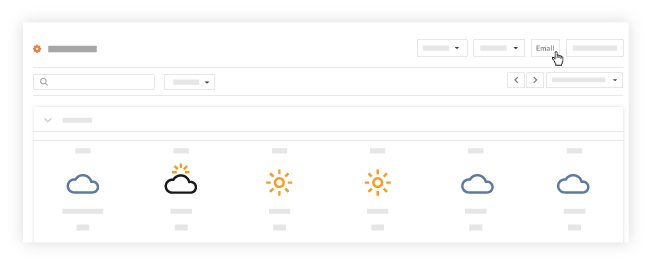
- Click the Email button.
- Fill out the following fields as appropriate:
Note: An asterisk (*) denotes a required field.- To*: Begin typing the name of a user you want to forward the site diary to and select them from the drop-down menu.
- CC: If you want to CC one or more users, select them from the drop-down menu.
- Private: Mark the checkbox if you only want recipients and Admins to be able to view the email in Procore.
- Subject: The subject is automatically populated with the date of the site diary. However, you can edit the subject.
- Attachments: If you want to add additional attachments to the email, use a drag-and-drop operation or click the Attach a File(s) link.
- Message: If you want to add a message to the email, enter it in the text box.
- Click Send to send the email to the recipients.
See Also
If you would like to learn more about Procore's daily log management software and how it can help your business, please visit our construction daily log reporting software product page  .
.
.