Add a User Account to the Project Directory
Objective
To add a user to a project's Directory from the company's Directory.
Background
In Procore, a user is someone who has a profile in Procore and can log into the Procore platform. When a user is added to a project's Directory, they are assigned to the project and can perform actions based on their permissions.
If a user already exists in the company's Directory, they can be added to the project's Directory. If the user does not yet exist, you can create a user in the Project Directory.
Depending on your permissions, you can add from the Add User option or the Bulk Add option.
Things to Consider
Steps
Add a User from the Company Directory from Add User Button
- Navigate to the Project level Directory tool.
- Click Add User.
ORBeta Click Add and select Add User. - Enter the user's first or last name to perform a search.
ORBeta Enter the user's first name, last name, or email address to perform a search. - Select the user.
- Assign a Project Permissions Template.
Note: We recommend selecting either a global permission template or a project specific permission template. To learn more about permission templates, see Manage Project Permissions Templates.- Apply a Permission Template Later: Select this option to define the user's permissions later. If you select this option and a permissions template is not applied, users with 'Admin' level permissions on the Project level Directory tool can adjust this user's permissions in the configuration settings pages for individual tools.
OR - Global Permission Template: To provide the user with the project access permissions defined in one of your company's global permission templates, select a template under the 'Global Permission Templates' section.
OR - Project Specific Permission Template: To provide the user with project access permissions defined in one of the project specific permission templates on the project, select a template under the 'Project Specific Templates' section.
- Apply a Permission Template Later: Select this option to define the user's permissions later. If you select this option and a permissions template is not applied, users with 'Admin' level permissions on the Project level Directory tool can adjust this user's permissions in the configuration settings pages for individual tools.
- Click Save.
Add a User from the Company Directory from Bulk Add Button
- Navigate to the Project level Directory tool.
- Click Bulk Add from Co. Directory.
ORBeta Click Add and select Bulk Add. - Use the Select box to select the companies and users you want to add to the project.
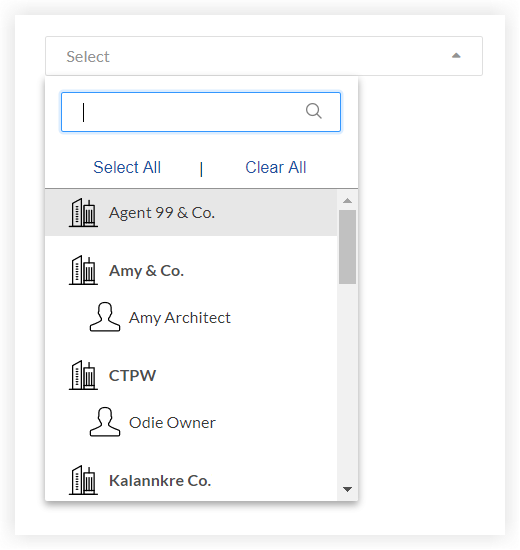
- Review your selections and make adjustments.
- To remove all of the users and companies in the selection table, click Clear All in the Select box.
- To remove an individual user or company in the selection table, click the red 'X' on their row.
- Select a permission template or select Apply Permission Template Later in the 'Permission Template' drop-down menu for each user added to the selection table.
- Optional: Select a project role in the 'Project Role' drop-down menu for each user added to the selection table. See What are custom project roles?
- Optional: Mark the 'Notify?' checkbox on a user's row to have the system send them an email notification to let them know they were added to the project.
- Scroll to the bottom of the selection table and click Add to Project.