Resource Planning: Set Up Guide
Table of Contents
- Welcome
- Groups
- Job Titles
- Tags
- Custom Fields
- User Permissions
- Import Resource Planning Data
- Data Management
- Additional Configurations
- Update Users in Procore
- Invite Users to Procore
- Success!
Welcome
What are groups?
Considerations and Best Practices
Configuration Steps
-
Navigate to the Company level Resource Planning tool.
-
Click the Settings
 icon.
icon. -
Click Groups.
-
Click New or Add Group.
-
Configure your group with the following properties:
Beta
- Group Name. The group's name.
- Timezone. The group's timezone.
-
Group Name. The group's name.
-
Timezone. The group's timezone.
-
Group Address. The group's street address.
-
Group Address 2. The group's street address, continued.
-
City/Town. The group's city or town.
-
State/Province. The group's state or province.
-
Postal Code. The group's postal code.
-
Country. The project's country.
-
Contact Name. The group's contact name.
-
Contact Phone. The group's contact phone number.
-
Contact Email. The group's contact email address.
-
Colour. The group's colour.
-
Picture. The group's picture.
-
Icon. The group's icon.
-
Click Save.
What are job titles?
Considerations and Best Practices
-
Job titles can be rearranged in this list using the reorder
 icon.
icon.
Tip
-
Set up your job titles as you would when building a labour plan. Job titles should be granular enough that you can easily assign the correct resource, but not so granular to have job titles that you never request.
-
You can add an hourly rate to a job title which allows you to manage cost using job titles instead of individual people.
Configuration Steps
-
Navigate to the Company level Resource Planning tool.
-
Click the Settings
icon. -
Click Job Titles.
-
Click New or Add Job Title.
-
Enter the job title information.
-
Click Save.
Tip
-
Click the edit
 icon to make changes to existing options.
 -
Click the delete
 icon remove existing options.
What are tags?
Considerations and Best Practices
Configuration Steps
-
Navigate to the Company level Resource Planning tool.
-
Click the Settings
icon. -
Click Tags.
-
Optional: To group tags in categories, click the Group Tags in Categories? toggle ON.
-
To create a new tag Category, click New in the 'Categories' section.
-
Enter the Category Name.
-
Click Save.
-
-
In the Tags section, click New.
-
Configure your tag with the following properties:
-
Name. The name of the tag.
-
Colour. The colour of the tag.
-
Require Expiration Date. Mark this checkbox if the tag requires an expiration date.
Note: If requiring an expiration date, the expiration date needs to be added when adding the tag to a person's profile. This is commonly used to track a person's certifications. For more information, see How do I use tags with expiration dates? -
# Days Warning Ahead of Expiration. The number of days in advance the person will be notified when their tag is expiring.
-
Globally Accessible to All Groups. Mark this checkbox if you want to make this tag available in all groups. See Configure Groups for Resource Planning.
-
Groups. If you choose not to make the tag available to all groups, select which groups should have access to the tag.
-
Abbreviations (5 Characters). The tag's abbreviation.
-
Categories. If you chose to categorise your tags, select the categories in which the tag should appear.
-
-
Click Save.
-
Navigate to the Company level Resource Planning tool.
-
Click the Settings
icon. -
Click Tags.
-
Optional: Create Tag Categories
-
Click the toggle
 ON to group tags in categories.
 -
Click Add Category.
-
Enter the category's Name.
-
Click Save.
-
-
Create Tags
-
In the Tags section, click Add Tag.
-
Enter your tag information.
-
Click Save.
-
Tip
-
Click the edit
icon to make changes to existing options. -
Click the delete
icon remove existing options.
What are custom fields?
Considerations and Best Practices
Configuration Steps
-
Navigate to the Company level Resource Planning tool.
-
Click the Configure Settings
icon. -
Click Custom Fields.
-
Click New or Add Custom Field.
-
Configure your custom field with the following properties:
-
Field Name. Enter the name of the custom field.
-
Field Type. Enter the type of field you are configuring.
-
Enable Use as Filter. Mark the checkbox to make the custom field a filter.
-
Integration Property Name (Legacy Only). Reflects the name of the property the integrating system can map to.
-
Integration Editable Only. Mark this checkbox if the field can only be edited in the system of origin.
-
Make Available To. Mark the checkboxes for where the custom field will be added. You can add custom fields to Projects, People, Assignments, and Requests.
-
Field Description. Enter a description of the custom field.
-
-
Click Save.
What are User Permissions?
Configure a Company Permission Template
Considerations and Best Practices for Resource Planning Templates
-
People who are 'Users' or 'Both' must be assigned a permissions template.
-
Users can only be assigned one permissions template at a time in Resource Planning.
-
You can click the Info
 icon next to each granular permission to see details.
 -
The 'Admin' template has all granular permissions enabled and cannot be edited or deleted.
Tip
- Your permissions should reflect your user roles and their actions that are required.
- For example, your Superintendent would likely take different actions than a person on your Human Resources team.
- With the exception of the 'Admin' permission template, you can edit the existing templates or create new ones to match your actual workflow and access.
- We recommend creating a permission template for field workers. This is essential for managing their timekeeping in Procore, as only users with the 'Users' or 'Assignable Users' type who have an assigned permission template can be included.
Configure Resource Planning Permissions Templates
-
Navigate to the Company level Resource Planning tool.
-
Click the Settings
icon. -
Click Permissions or Access Controls.
-
Click New or Add Permission.
-
Enter the Name of the permissions template.
-
Mark the checkbox for each granular permission you want to enable on the permissions template.
-
Click Save.
Prepare Data
a new admin settings experience is available
Company Administrators can enable the Resource Planning: NGX Helix - Admin beta in Procore Explore. (US 2 | UK)Background
The Resource Planning tool at the Company level is Procore’s construction resource management solution that provides real-time insight into your job assignments and availability.
To set up your Resource Planning tool, Procore offers data import to set up your projects, employees, and more. While only certain fields are required, it's recommended to fill out as much information as accurately as possible for the most complete setup.
Things to Consider
-
Customers can use this process one (1) time to set up their Resource Planning Tool.
-
No special characters
(~`!@#$%^&*()_{[}]|:;“‘<,>.?/)
Tip
-
Fill out as much information as possible for the most complete setup.
-
Review the spreadsheet for accuracy before submitting it.
Steps
-
Navigate to the Company level Resource Planning tool.
-
Click the Configure Settings
icon. -
Click Data Upload or Data Management.
-
Click the Excel Template hyperlink to open the Google Sheet.
-
Click File and select Make a Copy.
-
Fill out the following information in the template:
-
-
Click File, select Download, then select Microsoft Excel (.xlsx).
Next Steps
Import Data
a new admin settings experience is available
Company Administrators can enable the Resource Planning: NGX Helix - Admin beta in Procore Explore. (US 2 | UK)Background
The Resource Planning tool at the Company level is Procore’s construction resource management solution that provides real-time insight into your job assignments and availability.
To set up your Resource Planning tool, Procore offers a data import to set up your projects, employees, and more. While only certain fields are required, it's recommended to fill out as much information as accurately as possible for the most complete setup.
Things to Consider
-
The file uploaded must be in .xlsx format.
-
No special characters
(~`!@#$%^&*()_{[}]|:;“‘<,>.?/)
Prerequisites
Steps
-
Navigate to the Company level Resource Planning tool.
-
Click the Configure Settings
icon. -
Click Data Upload or Data Management.
-
Upload the data.
-
Click Upload Files and select the prepared Resource Planning import template. Then click Open.
-
Drag and drop the prepared Resource Planning import template from your desktop to the 'Drag and Drop' section.
-
-
Click Save.
Integrations
Background
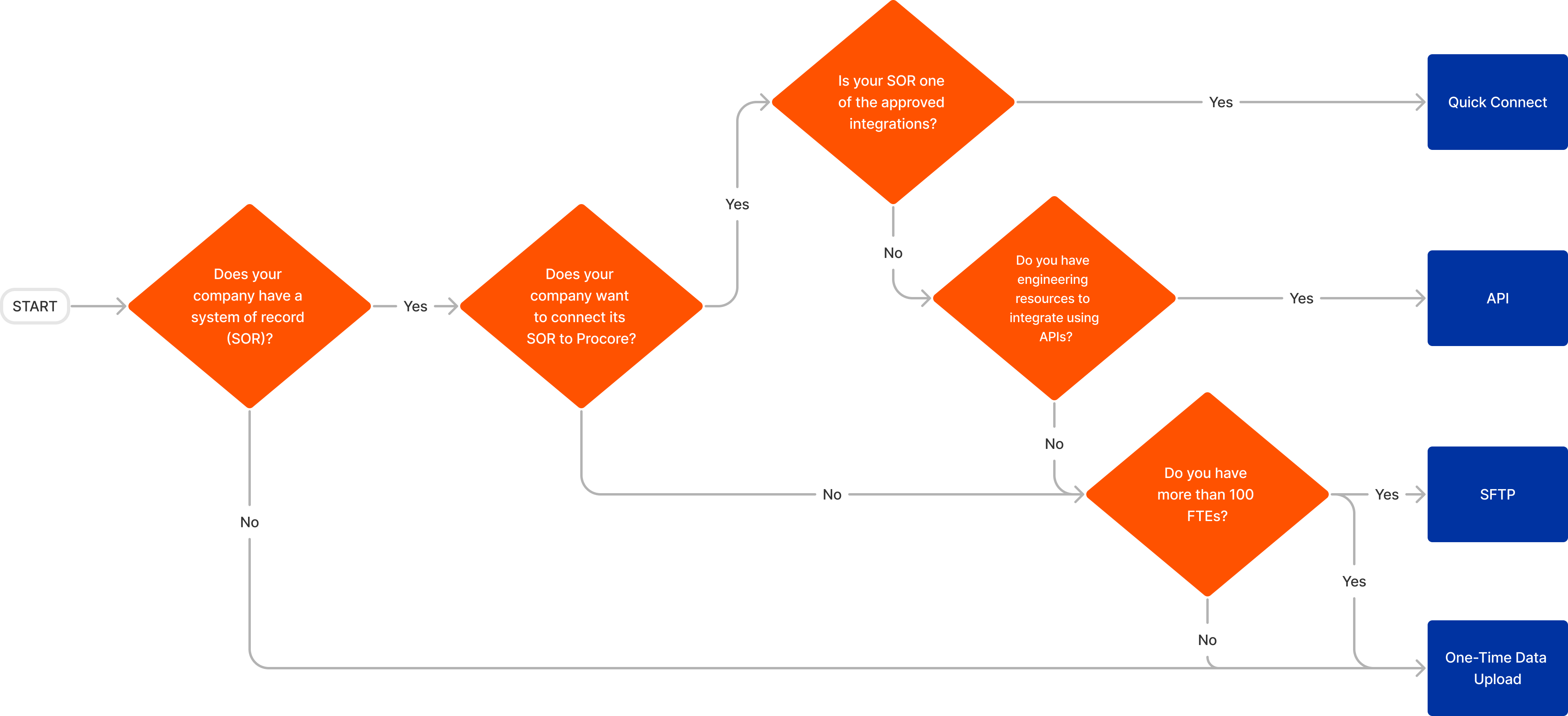
When you set up Resource Planning, you can choose to integrate a your system of record so that you can manage People and Projects in your system of record, and sync that data with Resource Planning. Work with your Procore account team to identify your system(s) of record and which integration option is right for your company.
Note
Not all information from your system of record can integrate with Resource Planning. Project roles and assignments, for example, do not integrate. To see a list of fields that integrate, see Resource Planning Detailed Data Mapping.After you have selected how to integrate your system of record, you can decide how you want to sync your data between Resource Planning and other Procore tools.
Answer
There are three integration options available:
- Quick Connect - see list of approved integrations.
- API
- SFTP
If none of the options work for your company, Procore can do a one-time data upload to add your people and projects.
Quick Connect
The QuickConnect integration syncs data from your system(s) of record to Resource Planning. This option is available to customers with an approved compatible system and takes approximately two weeks to implement.
QuickConnect syncs can run multiple times a day at desired times and sync one-way from your system of record to Resource Planning. There can be a separate source for people, and another source for projects; or both can come from the same source.
Note
If you are already integrating your ERP with Procore, it is recommend that you push projects from Procore's Portfolio tool to Resource Planning.To see what fields sync between your system of record and Resource Planning, see Resource Planning Detailed Data Mapping.
API
An API integration allows you to build your own APIs to connect your data to Resource Planning. This option gives you the most flexibility and customization for how data is integrated into Resource Planning. This option requires engineering resources from your company to build the integration, and as such, takes additional time to implement. We recommend this path only if you are familiar with using APIs to connect systems.
If you do not have experience working with APIs, but would still like to explore this option, the Technical Services Team can scope a Procore built connection.
To learn more about authentication and see a full list of available Resource Planning API endpoints, see Resource Planning API Documentation.
To learn more about testing, see What is the Monthly Sandbox Environment?
SFTP
SFTP is a secure, encrypted, way to transfer files over the internet. This integration option allows customers to use standardised CSV templates to upload the file(s) to a Procore hosted server when they want to update people and project data. This overwrites existing data and transfers it through the SQL database into Resource Planning automatically.
One-Time Data Upload
If an integration is not an option for your company, Procore offers a one-time data upload to add your people and projects to Resource Planning. After the upload, Resource Planning becomes the source of truth for People and Projects are manually updated in Resource Planning.
To get started with your data upload, see Prepare Data for Import to Resource Planning.
Data Syncing
Background
When setting up Resource Planning, customers first need to choose how you want to add information to Resource Planning. See What Integrations are available for Resource Planning?
After you select how to get information into Resource Planning, you can choose to sync people and project data so that information is kept in sync in Resource Planning and other tools in Procore.
Answer
Data syncing passes information between the Resource Planning tool and Procore’s Company level Directory and Portfolio tools.
When select people data is updated in either the Resource Planning People List or Company Directory tool, it is instantly synced to the other tool. See What people information is synced between Resource Planning and the Procore Company Directory?
When project data is updated in either the Portfolio tool or the Resource Planning Project list, it is instantly synced to the other tool. See What project information is synced between Resource Planning and Procore Projects?
data linking
If you are setting up data syncs for the first time, you may need to link existing records in the Portfolio tool and Company Directory with records in Resource Planning. We recommend that you do this step before your initial sync to avoid duplicates across the system.
Data linking happens automatically when matching records are found in both systems — no action needed on your end. Ensure that for contacts the employee numbers are populated and unique and that for projects the project numbers are populated and unique. If a record isn't automatically linking, reach out to your Procore point of contact for help troubleshooting.
Even if you don't sync data, people and projects automatically link  between the Portfolio tool, Company Directory, and Resource Planning when their information matches.
To avoid duplicate people records, ensure that the following fields match in both the Company Directory and Resource Planning People List:
-
Employee ID
-
Employee Email Address
To avoid duplicate projects, ensure that the following fields match in both the Portfolio tool and Resource Planning Projects List:
-
Project ID
-
Status: Active
Additional Configurations
Why do I need to Update Users in Procore?
Now that your data has been uploaded in Procore, there are some additional steps you need to take within Procore and the Resource Planning tool as some key information cannot be set in the one-time data upload. You will need to log in to Procore and update the following information about your users:
- User Type
- Permissions
You can also make additional changes if you notice inaccurate information was uploaded from your spreadsheet. See Edit People in Resource Planning.
User Type
By default, all people are uploaded into the Resource Planning tool as 'Assignable', meaning they can be assigned to work in Resource Planning. Set the users to the following user type based on what they need to do in Procore, and whether or not you need to track time for them.
|
Both
|
User
|
Assignable
|
 Can be tracked using Procore Timesheets
 Can NOT be assigned to resource assignments
Permissions
Permissions cannot be set in the one-time data upload. Permissions must be set in two places, in Procore's Permissions tool and in the user's profile in Resource Planning.
To access the Resource Planning tool, have 'Read Only' level permissions or higher to the Resource Planning tool. This is set by creating and applying permissions templates in Procore's Permissions tool.
Then, within the Resource Planning tool, People marked as 'Both' or 'User' must have a Resource Planning permission template assigned to them. You can update their Resource Planning permission template on the same screen where you update their user type.
Update Resource Types
-
Edit People Inline
-
Edit People from their Details
-
Bulk Edit People
-
Edit People from the Company Directory
Edit People Information from the People List
-
Navigate to the Company level Resource Planning tool.
-
Click People and select People List.
-
Click into the field and make edits.
Note: Not all fields can be edited inline. -
Click out of the field to save the changes.
Edit People Information from People Details
-
Navigate to the Company level Resource Planning tool.
-
Click People and select People List.
-
Click the person's name.
-
Click Edit.
-
Update information:
-
First Name. The person's first name.
-
Last Name. The person's last name.
-
Status. The person's user status.
-
Groups. The person's groups.
-
Job Title. The person's job title from the dropdown list. See Configure Job Titles for Resource Planning.
-
Classification. Select the person's classification.
-
Employee ID. The person's Employee ID.
-
Type. The person's user type.
-
Assignable. A person who can be given a resource assignment, but cannot login to Procore.
-
Assignable User. A person who can login to Procore, and be given a resource assignment.
-
User. A person who can login to Procore.
-
-
Email Address. The person's email address.
-
Phone Number. The person's phone number.
-
Notification Profile. The person's notification profile. See Configure Notification Profiles for Resource Planning.
-
Enable Email. Whether or not the person should receive email messages from Procore about their resource assignments.
Note: If enabling email notifications, an email is required. -
Enable SMS. Whether or not the person should receive SMS messages from Procore about their resource assignments.
Notes:-
Message and data rates may apply.
-
If enabling SMS notifications, a phone number is required.
-
-
Enable Mobile Notifications. Whether or not the person should receive notifications through the Legacy Resource Planning/LaborChart App.
-
Address. The person's address.
-
Address 2. The person's address, continued.
-
City. The person's city or town.
-
State. The person's state or province.
-
Postal. The person's postal code.
-
Country. The person's country of residence.
-
Hourly Wage. The person's hourly wage.
-
Language. The person's primary language.
-
Gender. The person's gender.
-
Hired Date. The date the person was hired.
-
Birth Date. The person's date of birth.
-
Emergency Contact Name. The name of the person's emergency contact.
-
Emergency Contact Phone. The emergency contact's phone number.
-
Emergency Contact Relation. The relationship between the person and their emergency contact.
-
[Custom Fields]. Any custom fields you have created for people. See Configure Custom Fields for Resource Planning.
-
Profile Photo. Select an image for the user's profile photo.
-
-
Click Save.
Bulk Edit People
-
Navigate to the Company level Resource Planning tool.
-
Click People and select People List.
-
Mark the checkboxes for the users you want to edit.
-
Click the edit
icon. -
Update the information.
-
Gender. The person's gender.
-
Groups. The person's groups.
-
Job Title. The person's job title from the dropdown list. See Configure Job Titles for Resource Planning.
-
Status. The person's user status.
-
Type. The person's user type.
-
Assignable. A person who can be given a resource assignment, but cannot login to Procore.
-
Assignable User. A person who can login to Procore, and be given a resource assignment.
-
User. A person who can login to Procore.
-
-
Language. The person's primary language.
-
Hourly Wage. The person's hourly wage.
-
State. The person's state or province.
-
Country. The person's country of residence.
-
[Custom Fields]. Any custom fields you have created for people. See Configure Custom Fields for Resource Planning.
-
-
Click Save.
Edit People Information from the Company Directory
-
Navigate to the Company level Directory tool.
-
Click the Users tab.
-
Optional: Click Add Filter and select Resource Planning.
-
Click View next to the person's name.
-
Click the Resource Planning tab.
-
Click Edit in the 'Information' section.
-
Update information:
-
Groups. The person's groups. See Configure Groups for Resource Planning.
-
Job Title. The person's job title from the dropdown list. See Configure Job Titles for Resource Planning.
-
Type. The person's user type.
-
Assignable. A person who can be given a resource assignment, but cannot login to Procore.
-
Assignable User. A person who can login to Procore, and be given a resource assignment.
-
User. A person who can login to Procore.
-
-
Notification Profile. The person's notification profile. See Configure Notification Profiles for Resource Planning.
-
Enable Email. Whether or not the person should receive email messages from Procore about their resource assignments.
Note: If enabling email notifications, an email is required. -
Enable SMS. Whether or not the person should receive SMS messages from Procore about their resource assignments.
Notes:-
Message and data rates may apply.
-
If enabling SMS notifications, a phone number is required.
-
-
Enable Mobile Notifications. Whether or not the person should receive notifications through the Resource Planning/LaborChart App.
-
Address. The person's address.
-
Address 2. The person's address, continued.
-
City. The person's city or town.
-
State. The person's state or province.
-
Postal. The person's postal code.
-
Country. The person's country of residence.
-
Hourly Wage. The person's hourly wage.
-
Language. The person's primary language.
-
Gender. The person's gender.
-
Date of Hire. The date the person was hired.
-
Birth Date. The person's date of birth.
-
Emergency Contact Name. The name of the person's emergency contact.
-
Emergency Contact Phone. The emergency contact's phone number.
-
Emergency Contact Relation. The relationship between the person and their emergency contact.
-
[Custom Fields]. Any custom fields you have created for people. See Configure Custom Fields for Resource Planning.
-
Profile Photo. Select an image for the user's profile photo.
-
-
Click Save.
Update User Permissions in Resource Planning
Take the following actions from the following tools:
- Resource Planning
- Directory
Resource Planning
Edit a Single User's Permissions
- Navigate to the Company level Resource Planning tool.
- Click People and select People List.
- Click the person's name.
- Click Edit.
- Select the person's Permission Level.
- Click Save.
Bulk Edit User Permissions
- Navigate to the Company level Resource Planning tool.
- Click People and select People List.
- Mark the checkboxes for the users you want to edit.
- Click the edit
 icon.
icon. - Select the Permission Level.
- Click Save.
Company Directory
Edit a Single User's Resource Planning Permissions
- Navigate to the Company level Directory tool.
- Click the Users tab.
- Optional: Click Add Filter and select Resource Planning.
- Click View next to the person's name.
- Click the Resource Planning tab.
- Click Edit in the 'Information' section.
- Select the Permission Level for the user in the Resource Planning tool. See Create Permissions Templates for Resource Planning.
- Click Save.