Add a Related Item to a Drawing
Objective
To add a related item to a drawing's 'Related Items' tab in the project's Drawings tool.
Things to Consider
- Required User Permissions:
- 'Admin' permissions on the project's Drawings tool.
Note: Users with 'Read Only' or higher permissions on the Drawings tool will be able to view the title of the related item.
- 'Admin' permissions on the project's Drawings tool.
- Additional Information:
- The drawing must be published in order to add a related item. See Publish Drawings.
- For an item category to appear in the drop-down menu for the 'Type' column, the corresponding tool must be active on the project. See Add and Remove Tools from a Project.
- For an item to appear in the drop-down menu for the 'Description' column, you must have the appropriate permission to view that item in the corresponding Procore tool.
- If you want to link items to a markup on the drawing itself, see Link Items on a Drawing.
Steps
- Navigate to the project's Drawings tool.
Note: If your project uses Drawing Areas, select the drawing area you want to open. - Click Info
 icon next to the drawing to view the drawing info.
 - Click the Related Items tab.
- Click Edit.
- Complete the following:
- Type. Select the type of item from the list.
- Description. Select the item you want to add as a related item.
- Date. The system automatically fills the date with the date the item was added to Procore. If there is no date associated with the item, the date field will remain blank.
- Notes. Add notes to clarify how the item is related to the drawing.
- Click Add.
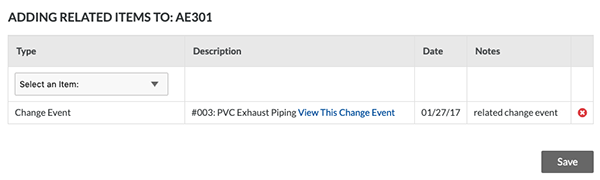
- Optional: Add additional related items as needed.
- Click Save.
The related item will be shown with a direct link to the item.