View the Executive Dashboard in the Portfolio Tool
Objective
To view the Executive Dashboard in the company's Portfolio tool.
Background
The Portfolio tool includes an Executive Dashboard that shows a pictorial view of the active projects in your company's account.
Things to Consider
- Required User Permissions:
- 'Read Only' or higher on the company's Portfolio tool.
Note: The required user permissions for the company's Portfolio tool to view the Executive Dashboard can be configured by a user with 'Admin' level permissions on the company's Portfolio tool. See Set the Dashboard View Permissions. - 'Read Only' or higher on the Company level Reports tool.
- 'Admin' level permissions on the Project level Admin tool for one or more projects.
Note: Users can only view the Procore project data for projects they have been added to. See Add an Existing User to Projects in Your Company's Procore Account or Add a User Account to the Project Directory.
- 'Read Only' or higher on the company's Portfolio tool.
- Recommendations:
To get the most out of your Executive Dashboard, we recommended that your company create the following items for use with Procore:
Steps
- Navigate to your company's Portfolio tool.
The Portfolio page appears. After you create a project, this page lists all the projects in your company's Procore account. - Click Executive Dashboard.

This reveals the Executive Dashboard. - View each of the available charts:
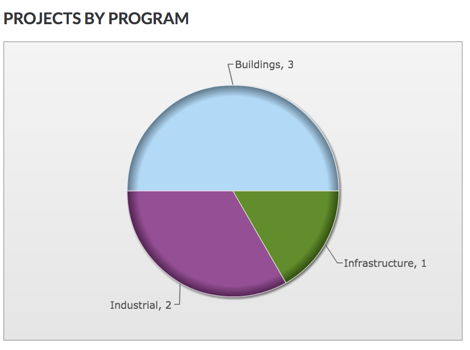
- Projects by Programs. Reveals a pie chart showing the total number of Procore projects in your company's account by program. See Add a Custom Program.
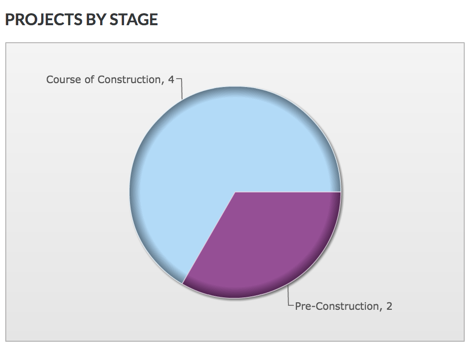
- Projects by Stage. Reveals a pie chart showing the total number of Procore projects in your company's account for each project stage. See Add a Custom Project Stage.
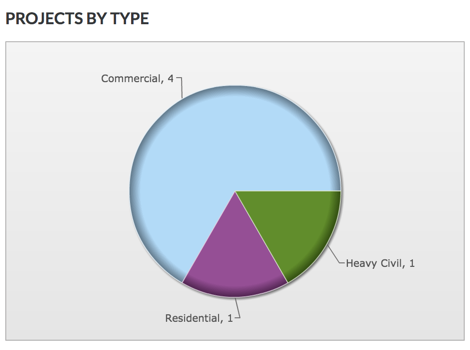
- Projects by Type. Reveals a pie chart showing the total number of Procore projects in your company's account for each project type. See Add a Custom Project Type.
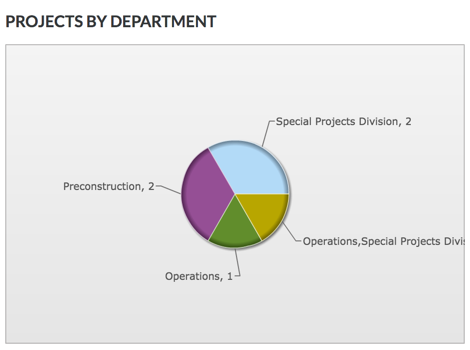
- Projects by Department. Reveals a pie chart showing the total number of Procore projects in your company's account for each department. See Add a Custom Department.
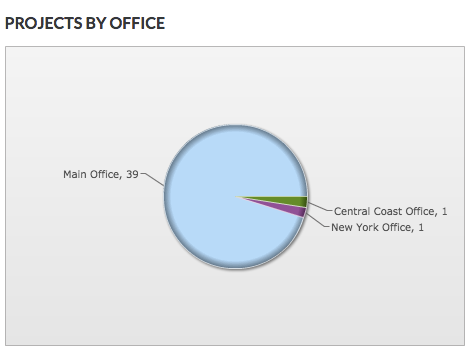
- Projects by Office. Reveals a pie chart showing the total number of Procore projects in your company's account for each office location. See Add Office Locations.
- Projects by Programs. Reveals a pie chart showing the total number of Procore projects in your company's account by program. See Add a Custom Program.