Create a Potential Variation for a Head Contract
Objective
To create a Potential Variation (PV) for a head contract and complete its Schedule of Values (SOV).
Background
When a change to the scope of work or the original head contract amount occurs during a construction project, the change management process begins. You can create a PV if your company's Procore Administrator configures the Head Contracts tool with the two (2)- or three (3)-tier variation configuration setting. See What are the different variation tier settings in Project Financials?
Things to Consider
- Required User Permissions:
- Admin' level permissions on the project's Variations tool.
Important
Do not use the steps below when:- The Change Events tool is enabled on the projects. Follow these steps instead: Create a Head Potential Variation from a Change Event.
- The Head Contracts tool is configured with the one (1) tier variation configuration setting. Follow these steps instead: Create a Head Contract Variation.
- Admin' level permissions on the project's Variations tool.
- Additional Information:
- After a PV is approved, the next step depends on the Head Contracts tool's variation configuration setting:
- For the two (2)-tier change order setting, continue with these steps: Create Head Potential Change Order
- For the three (3)-tier variation setting, continue with these steps: Create a Variation Request for a Head Contract
- After a PV is approved, the next step depends on the Head Contracts tool's variation configuration setting:
- For companies using the
 ERP Integrations tool: Show/Hide
- Not all ERP integrations support the sync of variations. For those that do, additional requirements, limitations and considerations vary depending on the ERP system your company's account is integrated with. See Things to Know About your ERP Integration for details.
Prerequisites
- Its recommended that you configure the Head Contracts tool with the 2-tier variation configuration setting. The 3-tier setting is also supported. See What are the different variation tier settings in Project Financials?
Steps
Create a Potential Variation
- Navigate to the project's Head Contracts tool.
- Locate the head contract to work with. Then click its Number link.
- Click the Variations tab.
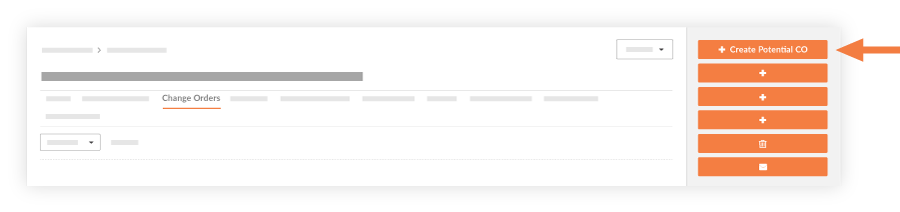
- Click Create Potential CO.
- Complete the following fields:
- Number
Procore automatically assigns a sequential number to the new PV. You can change this number if you want. - Date Created
Shows the creation date and time. This value cannot be changed. - Revision
Shows the revision number. The first version is zero (0), subsequent revisions are assigned in sequential order. A PV might have several revisions, depending on its reviewer/approver feedback. - Created By
Shows the Procore user who created the PV. This value cannot be changed. - Contract Company
Shows the name of the company responsible for performing the work on the contract. - Contract
If you have been assigned access permissions to the Head Contracts tool, click this link to open the contract. - Title
Enter a title for the PV in this box. - Head Contract Variation
Select a Head Contract Variation (HCV) from the list to link it to the PV. - Status
Select the current state of the PV. To learn more, see What are the default statuses for variations in Procore? - Change Reason
Select the reason for the PV, either Client Request, Design Development, Allowance, Existing Condition, Back Charge or any additional options created for your specific environment by your company's Procore Administrator. See Set Default Change Management Configurations. - Variation Request
Note
The Variation Request (VR) setting is only required when the Head Contracts tool is using the 3-Tier variation configuration setting. See What are the different variation tier settings in Project Financials?- None. A PV can be linked to a VR at a later time.
- Add to Existing. Link the PV to an existing VR.
- Create New. Create a new VR. You also have the option to create a new HCV at the same time.
- Private
Mark this checkbox if you only want the potential variation to be visible to users with 'Admin' permissions on the Head Contracts tool. - Accounting Method
This field inherits the accounting method that was specified in the head contract. See How do I set the accounting method for a contract or funding? - Description
Enter a more detailed description of the reason for the PV. - Request Received From
Select the Procore user for whom you are submitting the PV. - Program Impact
If known, provide an estimate for the additional number of days required to complete work when the PV is approved. - Location
Use this drop-down list to select a location related to the PV. You can select an existing location or Add a Multi-tiered Location to an Item. - Reference
Add any other important tools, materials, drawings or documents to uses as a reference for the PV. - Field Change
Check this box if the PV requires a field change. - Paid in Full
Check this box to indicate you have received payment for this change. - Attachments
Select and add any relevant documents.
- Number
- Click Create.
Add a Schedule of Values to a Potential Variation
When there are costs associated with a PV, you must add line items to the SOV.
- In the PV click the Schedule of Values tab
Notes
- If sub-jobs are enabled (see Enable Sub Jobs on Projects for WBS), the Sub Jobs drop-down list contains all sub-jobs added to the project. See Add 'Sub Job' Segment Items to a Procore Project.
- All cost codes related to the sub-jobs will appear in the following field.
- Select the correct Cost Code from the drop-down list.
- Enter a description for the line item.
- Select the appropriate Cost Type. If you're using the Budget tool, the Type will pre-fill to the first type associated with that cost code on the Budget. You should only select a "non-budgeted" line item type if you would like to add a new line on the Budget.
- Click the + button. If the combination of the sub job, cost code and cost type are non-budgeted, a pop-up will appear asking you to confirm you want to add this line item to the budget. If OK is selected, this line item will be added directly to the Budget with a "?" next to the line item. See Add a Partial Budget Line Item.
Notes
- The 'Associated Line Item' drop-down list only appears if your company's Procore account is integrated with Sage 300 CRE® and the Head Contracts tool is active on the project.
- When adding line items to the variation's SOV, you must select an associated line item for each new line item. You may designate one (1) associated line item or use the same associated line item for multiple line items.
- Repeat the steps above to add new line items.
- Click Save.
Tip
If the PV also affects a purchase order or subcontract, continue as follows:
- For contracts using the two (2)- or three (3) tier variation configuration settings, click Create CPV. See Create a Commitment Potential Variation (CPV) from a Change Event.
- For contracts using the one (1) tier variation configuration setting, click Create CV. See Create a Commitment Variation from a Head Contract Variation.
To learn how to associate financial markup with line items, see Add Financial Markup to Head Contract Variations.
 .
.