Vendor Evaluation

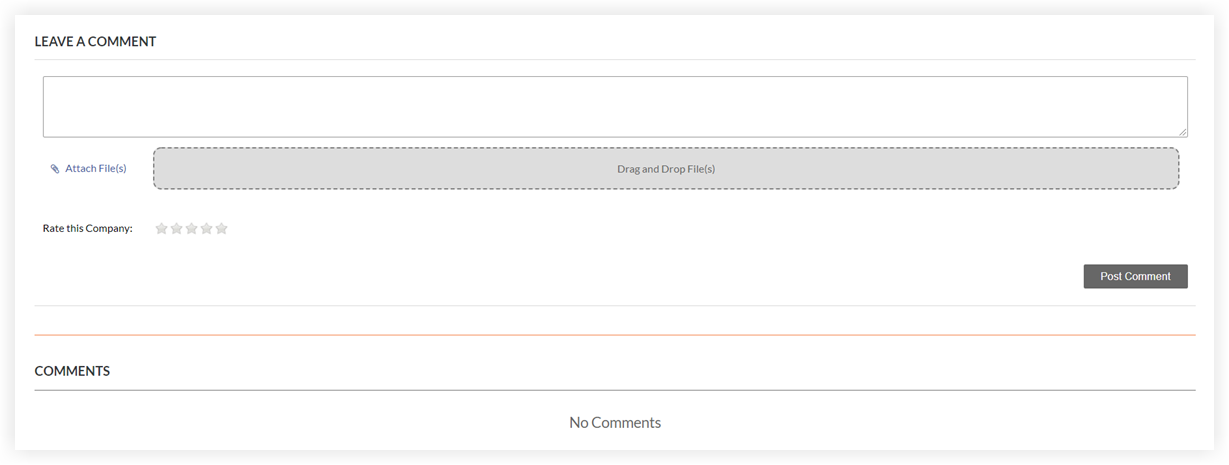
- At the end of a project, we must evaluate the main contractors
- Procore > Project level > Directory > Company > Rate this company, add comment > Post comment
- 1 star = Never use
- 2 stars = Only if no other options
- 3 starts = use with caution and with close management
- 4 stars = Good contractor
- 5 stars = Expedite compatible (they derisk and go the extra mile)
______________________________________________________________________________________________________________________________________________________________________
Objective
To set tenderer information for company records in the Company level Directory tool.
Things to Consider
- Required User Permissions
- Tenderer information is linked between the Project level and Company level Directory tools.
- Tenderer information for connected companies are also set by the connected company. See Refresh Tender Contacts for Connected Companies in the Company Directory
Steps
- Navigate to the Company level Directory tool.
- Click the Companies tab.
- Click Edit next to the company.
- Click the Tenderer Info tab.
- Choose from these options:
- If you are updating a company record for a U.S. government job that requires disclosure of the following information, mark the checkboxes that apply to the company.
- If you are updating a company record where collection of such data is not required or is prohibited by law in your jurisdiction, please disregard the checkboxes and proceed to the next step.
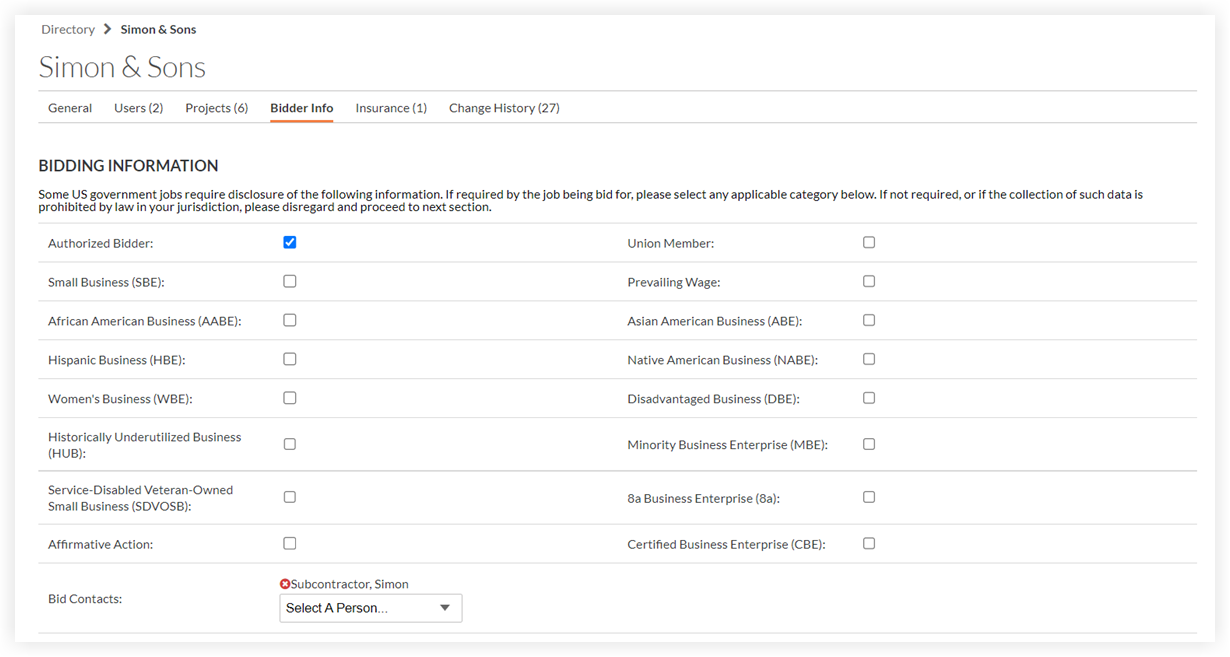
- Authorised Tenderer: Mark this checkbox to designate an Authorised Tenderer. This is for reporting purposes only and does not affect Procore emails.
- Add users to the Tender Contacts(*) field to ensure they receive tender invitations. Once added, they will automatically populate the Tender Recipient field on new tenders.
(*): In Free Accounts, the Tender Contact checkbox is required for users in the Team tool. See Assign a User as a Tender Contact in Your Free Procore Account. - Prequalifications: If the Prequalifications tool is enabled, company qualification data will be listed. See the Prequalifications tool for more information.
- Set trades and cost codes so that the company will appear when searching by trade or cost code in the Tendering tool.

- Cost Code: Select which cost codes apply to this company. If your cost codes are not already set up, see Add Company Cost Codes or Import Cost Codes into your Company Level Admin Tool (Procore Imports).
Note: The cost codes selected will automatically appear on a tender sheet if these associated cost codes are on the project. - Trade: A classification for the company's work type (e.g., Electrical, Mechanical, HVAC). If your trades are not set up, see Add a Custom Trade.
Note: You can bulk update the cost codes and trades associated with companies by 'Updating the Existing Vendors' template. See Update Contacts in your Company Directory Tool (Procore Imports) for more information.
- Cost Code: Select which cost codes apply to this company. If your cost codes are not already set up, see Add Company Cost Codes or Import Cost Codes into your Company Level Admin Tool (Procore Imports).
- Recent tenders are listed at the bottom of the page. Click any link to view the tender package or project.
Note: You must have permissions to view these projects/bids for them to show here. - Click Save.
- In the 'Leave a Comment' section, complete the following:
Note: This section is designed to assist you in your decision making when searching for tenderers. See Search for and Invite Tenderers.- Enter a comment.
- Attach any relevant files for your records.
- Rate their work with a 1-5 star system.
- Click Post Comment.
Existing comments, files, and ratings display in the 'Comments' section.