

Move Co-ordination Issues to Observations
Objective
To move a coordination issue to an observation.
Background
Some design issues are best resolved on-site. The Move to Observation feature creates a seamless handoff for these items to field teams. Rather than closing an issue and risking it might be forgotten, this function formally transfers it by closing the original co-ordination issue and creating a linked observation in the Observations tool. You can also move multiple co-ordination issues in bulk. This improves accountability, connects office and field teams, and ensures all items are tracked through to resolution, providing a clear record for model sign-off.
Things to Consider
- Required User Permissions:
- Users need both permissions:
- 'Admin' permissions on the project's Co-ordination Issues tool.
- 'Standard' or 'Admin' permissions on the project's Observations tool.
- Users need both permissions:
- Additional Information:
- Users can only move issues in the Open or Released status.
- Users can also bulk-edit the Type, Description, Assignee, Private (checkbox), and Attachments fields. To learn more, see Bulk Edit Co-ordination Issues.
- Procore automatically copies the Title, Location, and Trade entries for each issue to the new observation.
- Procore links new observations to each issue's General tab.
Steps
From the Procore BIM Plugin
- Open Navisworks® and a model on your computer. See Getting Started Using the Procore BIM Plugin.
- With the Procore tab selected, click Issues List.
- Hover over the desired issue.
- Click Info.
- Click the vertical ellipsis
 icon.
icon. - Click Move to Observation.
- Complete the remaining fields for the observation. See Create an Observation.
- Click Create. The Procore BIM Plugin adds the co-ordination issue to the Observations tool, and its status changes from 'Moved to Observation'.
From the Co-Ordination Issues Tool
Move Issues in Bulk
- Navigate to the project's Co-ordination Issues tool in Procore.
- In the table on the All Issues tab, select the checkboxes for the co-ordination issue(s) to move.
This opens a Bulk Edit side panel. - From the Status drop-down list, select Move to Observation. To learn about the fields you can bulk edit, see Bulk Edit Co-ordination Issues.
- Click Update to save your changes. Procore creates a linked observation and updates the issue's status to 'Moved to Observation.'
Move a Single Issue
- Navigate to the project's Co-ordination Issues tool in Procore.
- Click the Issue link to view its details in the side panel.
- Click the
 icon to open the More Options menu and choose Move to Observation.
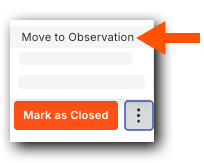
- Complete the fields for the observation. See Create an Observation.
- Click Create. Procore creates a linked observation and updates the issue's status to 'Moved to Observation.'